

Launching Assessments in Bulk allows assessment facilitators to launch assessments for all Entities within a Group or the entire Organization at once. This saves time launching, provides a single participation link instead of juggling many links, and still provides all the flexibility of separately-launched assessments.
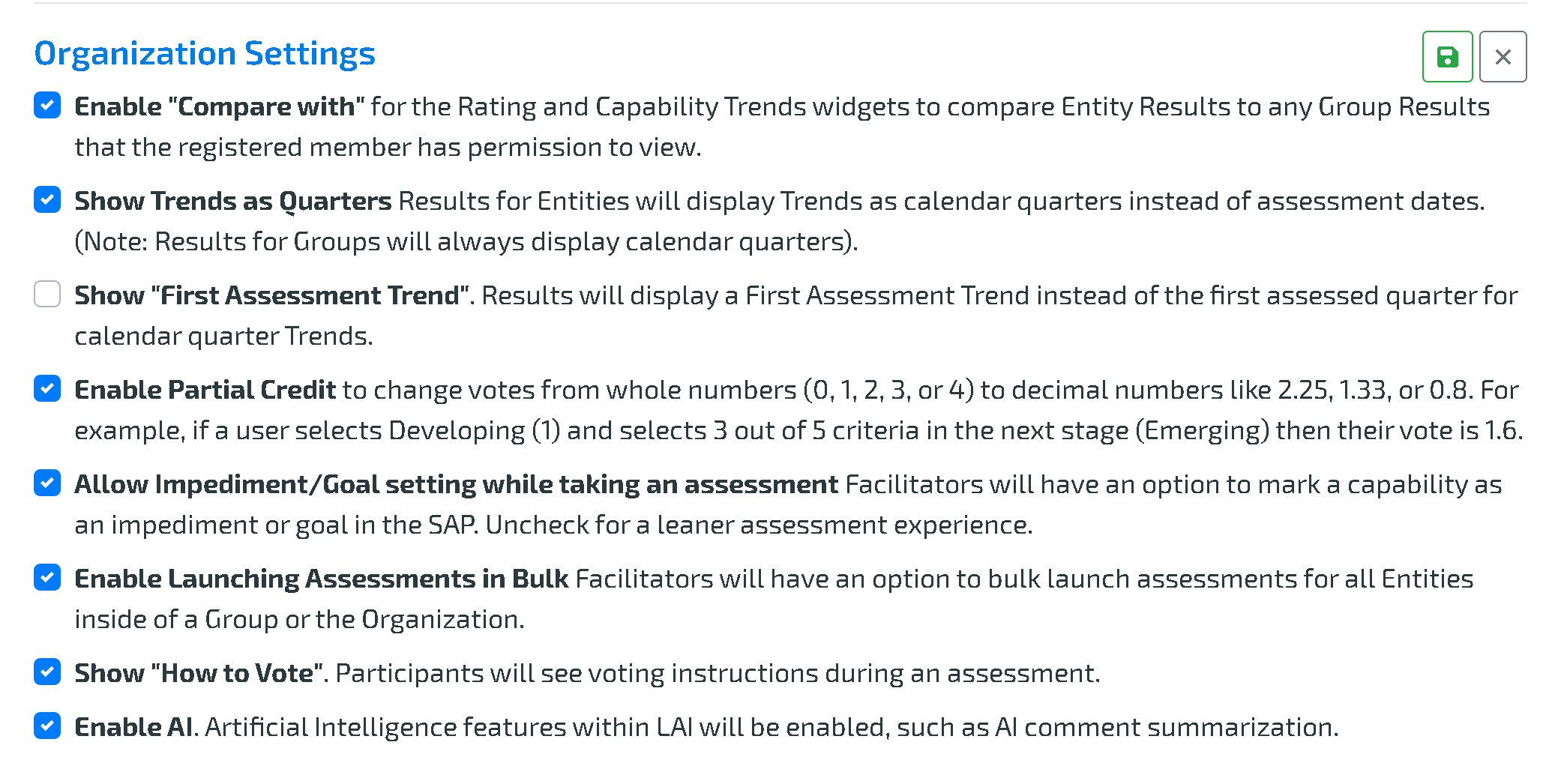
Enabling Bulk Launch
To enable Bulk Launch, an admin must:
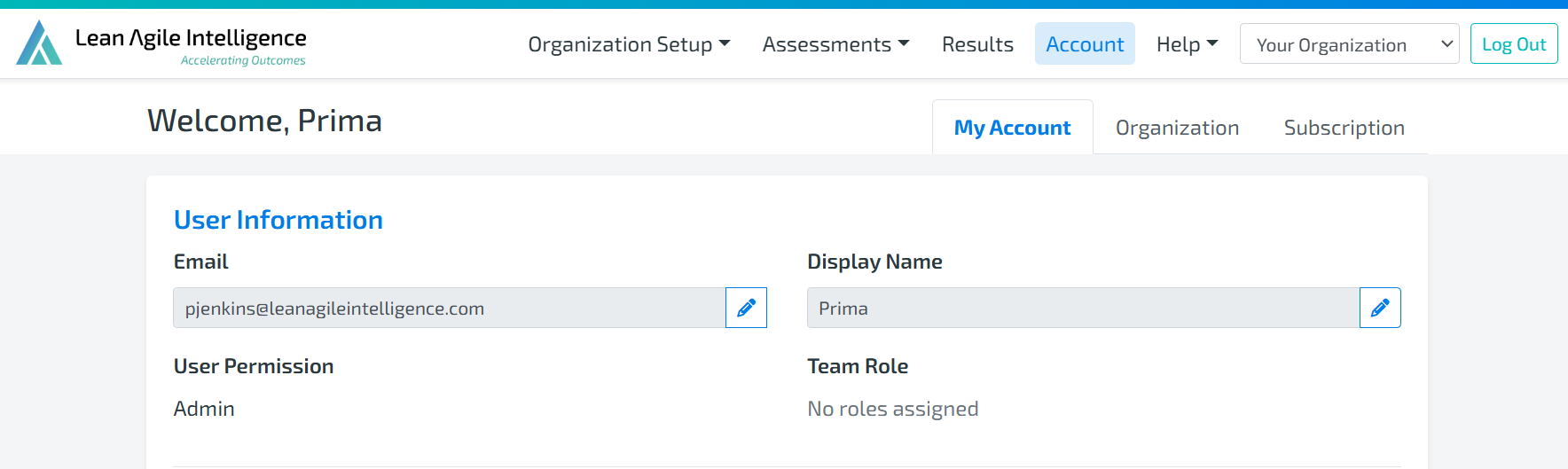
1.) Navigate to the Account Page.
2.) In the Organization tab, under Organization Settings, check Enable Launching Assessments in Bulk.
How to Bulk Launch an Assessment
1.) In Assessment Templates page, choose a Capability Template by clicking it and click Launch Assessment, like you would launch any assessment.
2.) In the Launch Assessment screen, select In Bulk.
If the user does not have permission to any Groups/Organization, the “In Bulk” option will not appear for that user.

3.) Choose the Group/Organization from the dropdown list.
Only Groups/Organization that the user has permission to will appear in the list.
4.) Based on the selected Capability Template’s Type:
Individual: The assessment will be launched for all Individual Entities within the selected Group.
Team: The assessment will be launched for all Team Entities within the selected Group.
At Scale: The assessment will be launched for all At Scale Entities within the selected Group.
“Within the selected Group” includes all descendant Entities of the selected Group/Org.
Please Note: If any entity within the selected Group already has an assessment of that selected Capability Template in progress, the system will prevent launching a new assessment.
Configurations
In general, all configurations and options set on the bulk launch will apply to all assessments launched.
Note that In Configure Mode, users can choose the assessment mode:
Together Mode (only applies within each Team Entity, not across the entire Group).
Separate Mode for individual responses.
For more detailed information on how to configure an assessment, please check out this documentation.
Managing the Bulk Launch Assessment
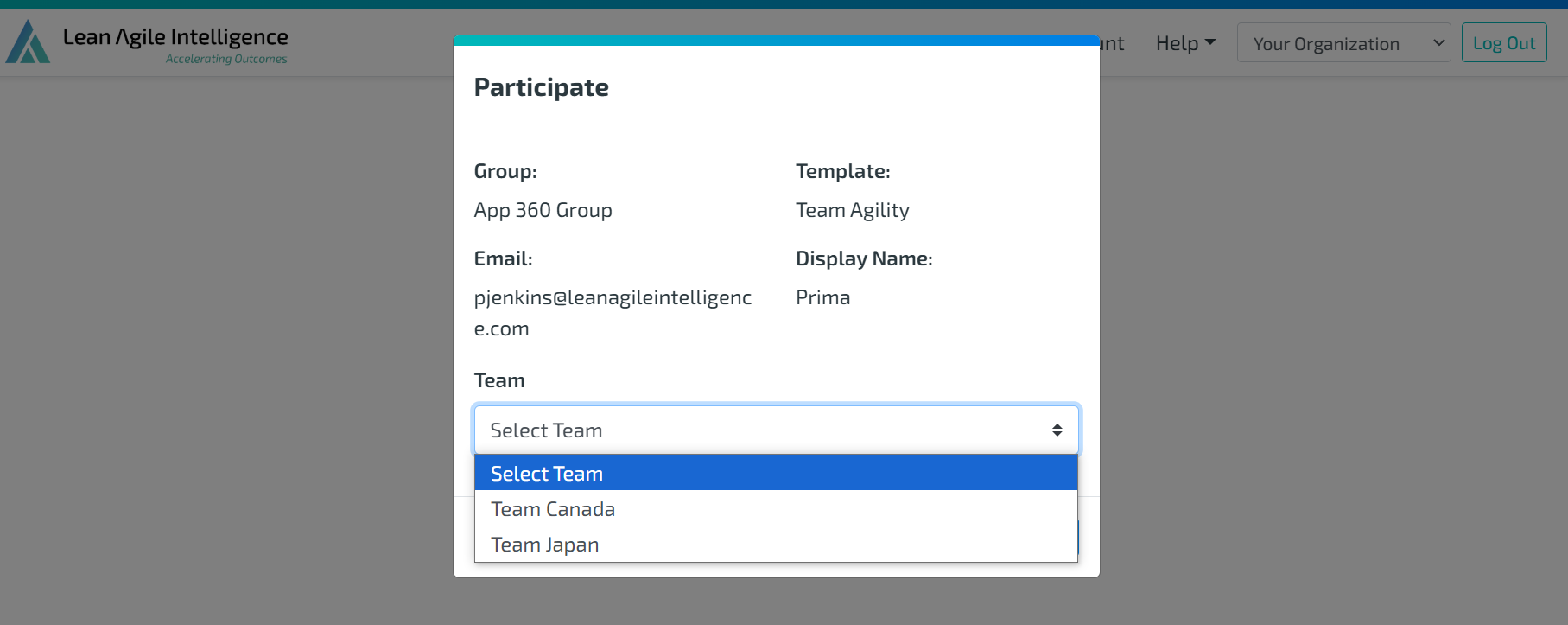
Once launched, a single link is provided to manage the assessment. All participants within the Group can use this link to access the assessment.
When clicking the link, participants can select the specific Entity they are taking the assessment for.
If an individual Entity's assessment link is needed, go to Manage Assessments, find the specific Entity, and click "Copy Assessment Link".

Alternatively, the Bulk Launch Assessment link can be found under Overview, showing that it is part of a Bulk Launch and providing the group launch link.

Closing a Bulk Assessment
Closing an assessment is done per Entity and it does not affect other Entities within the Group.
For more information on how to close and manage assessments, please refer to this documentation.