

Article Contents:
The Results Navigator streamlines assessment review into a guided, time-boxed experience. Instead of getting lost in data, teams move confidently from results → insights → action — all in one structured flow. The tool eliminates guesswork by highlighting trends, strengths, disagreements, and growth opportunities. With built-in facilitation prompts, even first-time users can run an effective retrospective-style discussion with clarity and focus.
Watch the Results Navigator Guide video or continue with the documentation.
The Results Navigator is a guided decision-making wizard designed to help teams review assessment data, identify areas of focus, and build a meaningful improvement plan. It provides a structured review process after an assessment, helping teams analyze results, highlight strengths, uncover growth opportunities, and convert insights into an actionable plan.
Action Plan: A list of committed capabilities, marked as impediments or goals, with associated improvement actions (IAs) planned before the next assessment.
The Results Navigator is available only when viewing Results for an Entity. You can launch it from the top of Results when viewing any dashboard.
Once viewing Results for an entity:
Locate the Open Results Navigator button at the top right.
Click to the button to launch the wizard.

If only one assessment is available, it will automatically be selected.
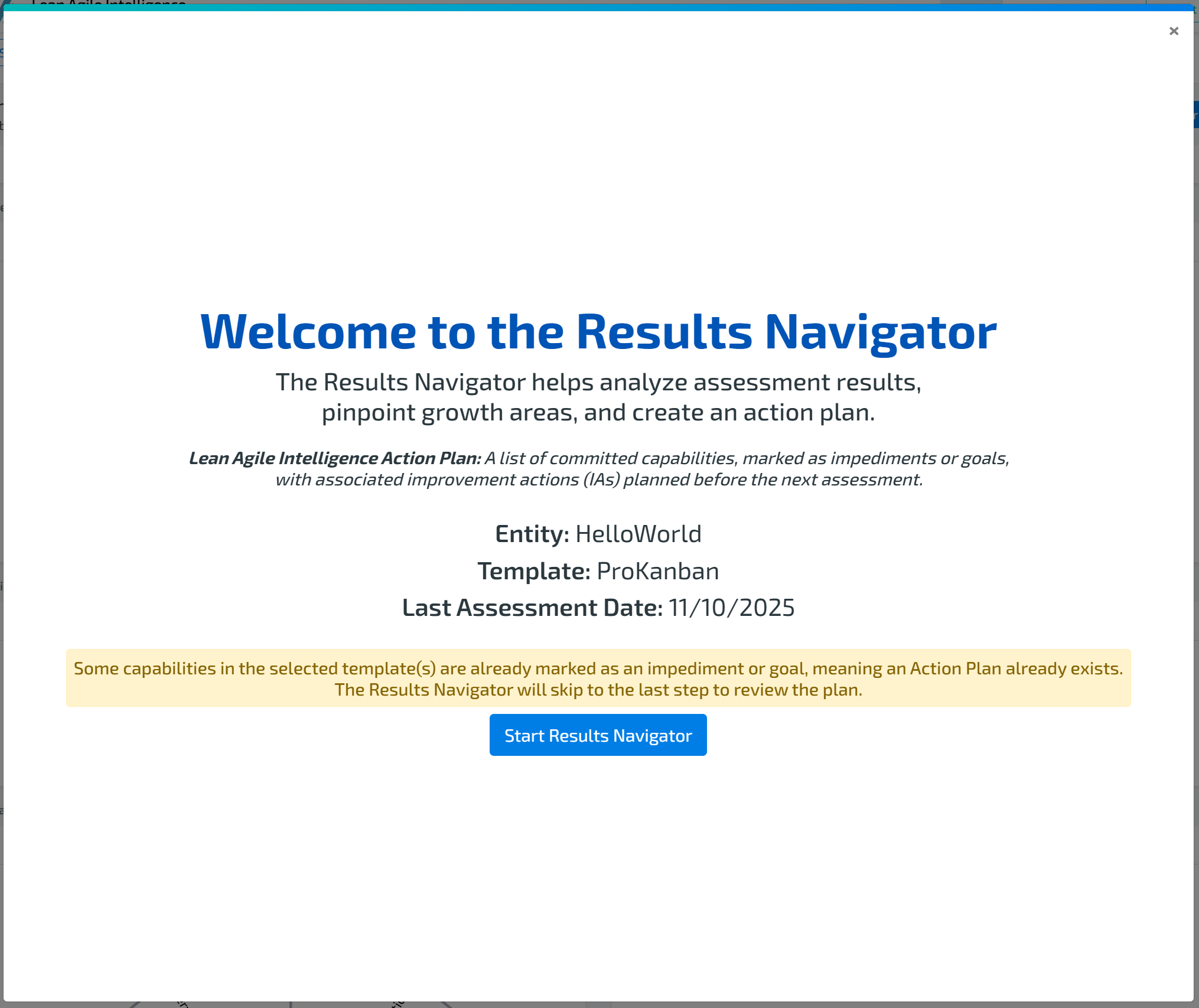
If multiple qualitative assessments exist, you may select which assessment templates to include by checking the associated boxes.
If some capabilities have already been marked as Goals/Impediments, the system recognizes that an Action Plan exists and will skip directly to the final step for review.
Each step in the wizard includes:
Timebox — recommended duration for discussion
Objective — purpose of that step
Facilitator prompts/questions — to help guide conversation
At any time you may:
Click a capability name to open the Capability Drilldown for further details
Note: depending which section of the Results Navigator you clicked on, the Capability Drilldown will have its view defaulted and show only relevant information for that step.
Return to Navigator using a new back navigation button in the top left.
Add/Remove a Capability from the Action Plan by using new buttons at the bottom right of the Results Navigator: Add Capability to Action Plan and Remove Capability from Action Plan.
View the drilldown without losing your Navigator progress
Add or remove capabilities from the Action Plan using the checkbox
Information Displayed:

Entity: Entity currently being reviewed
Template(s): Assessment templates selected for analysis
Last Assessment Date: Most recent assessment completion date (appears only if one template is being reviewed).
Capabilities in Action Plan (Sticky Dropdown): Shows capabilities selected for your plan throughout navigation
REVIEW PREVIOUS ACTION PLAN
Objective: Reflect on your last Action Plan — what was achieved, what was learned, and how previous improvement actions have influenced progress.
Timebox: 10 minutes
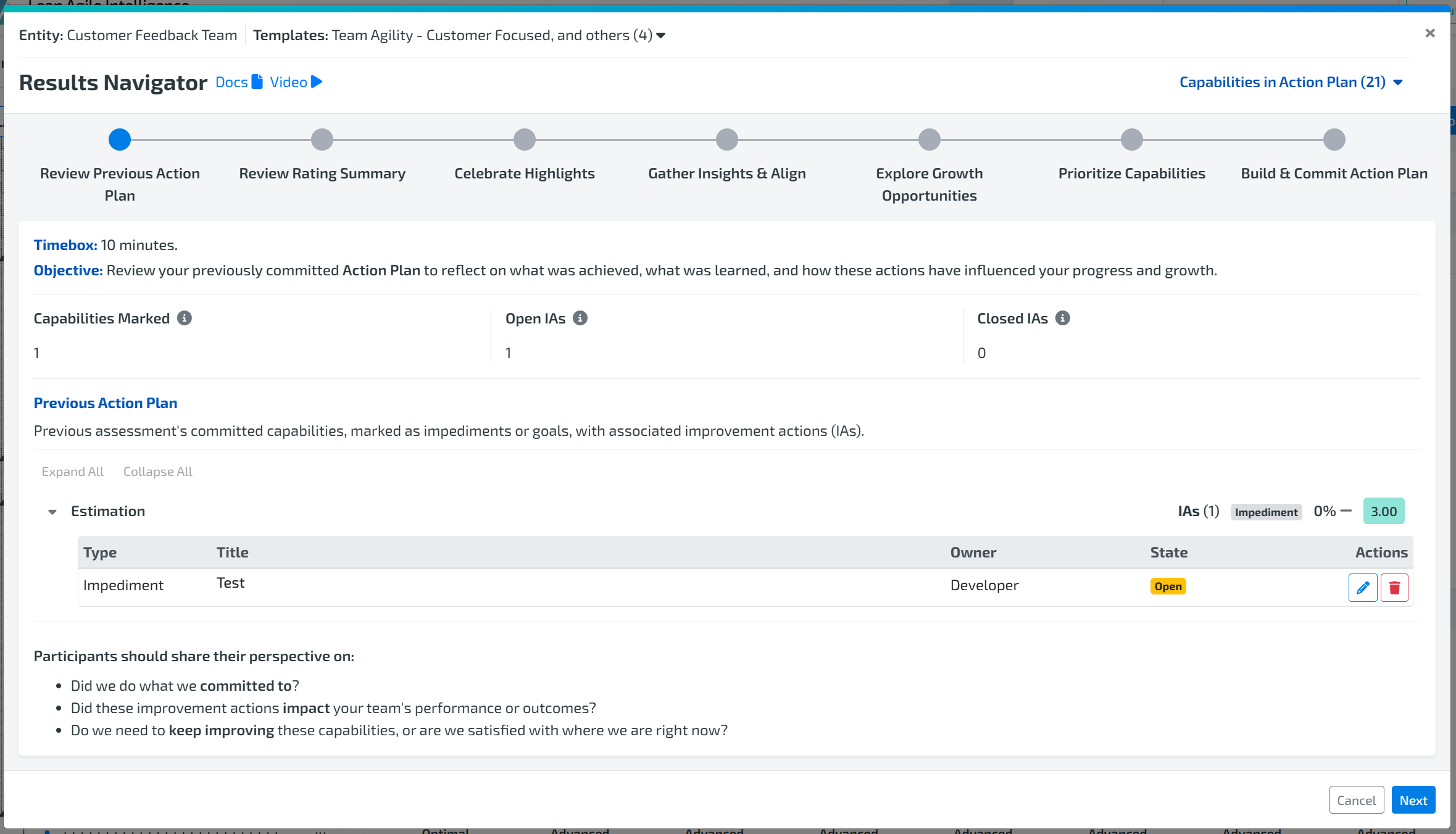
This step will appear only if a previous Action Plan exists, meaning the team has committed to capabilities in a past assessment cycle.
Elements displayed:
Capabilities Marked: The capabilities previously selected for improvement, marked as Goals or Impediments
Open IAs: Improvement actions from prior cycles that remain active or incomplete
Closed IAs: Improvement Actions that have been completed
Previous Action Plan Summary: View of last assessment’s committed capabilities, IA status, and outcomes
You will also see all open IAs from the previous cycle.
From here you can take action directly:
✔ Edit IAs — click the Edit icon in the Actions column
✔ Delete IAs — remove actions no longer relevant or needed
This ensures the team begins with clarity — carrying forward only what still matters.
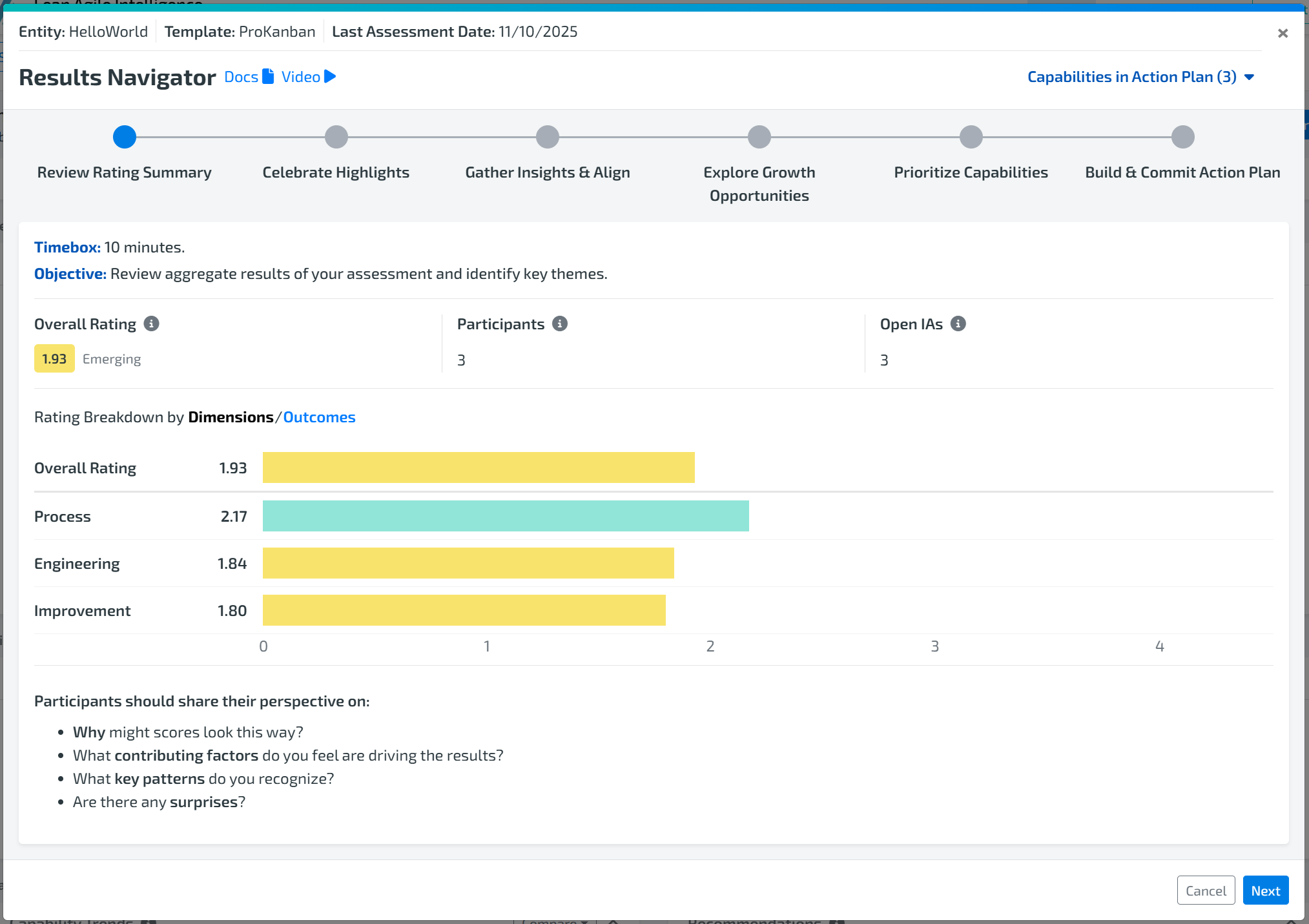
STEP 1: REVIEWING RATING SUMMARY
Objective: Review aggregate performance and identify high-level themes
Timebox: 10 minutes
Elements displayed:
Overall Rating – Aggregate average rating across all selected templates
Since Previous Period – Rating change relative to previous assessment
Since First Assessment – Rating change compared to baseline assessment
Participants – Total number of assessment participants
Open IAs – Total open IAs linked to capabilities in scope
Rating Breakdown by Dimensions
Rating Breakdown by Outcomes
Use guided questions to spark conversation and insight.
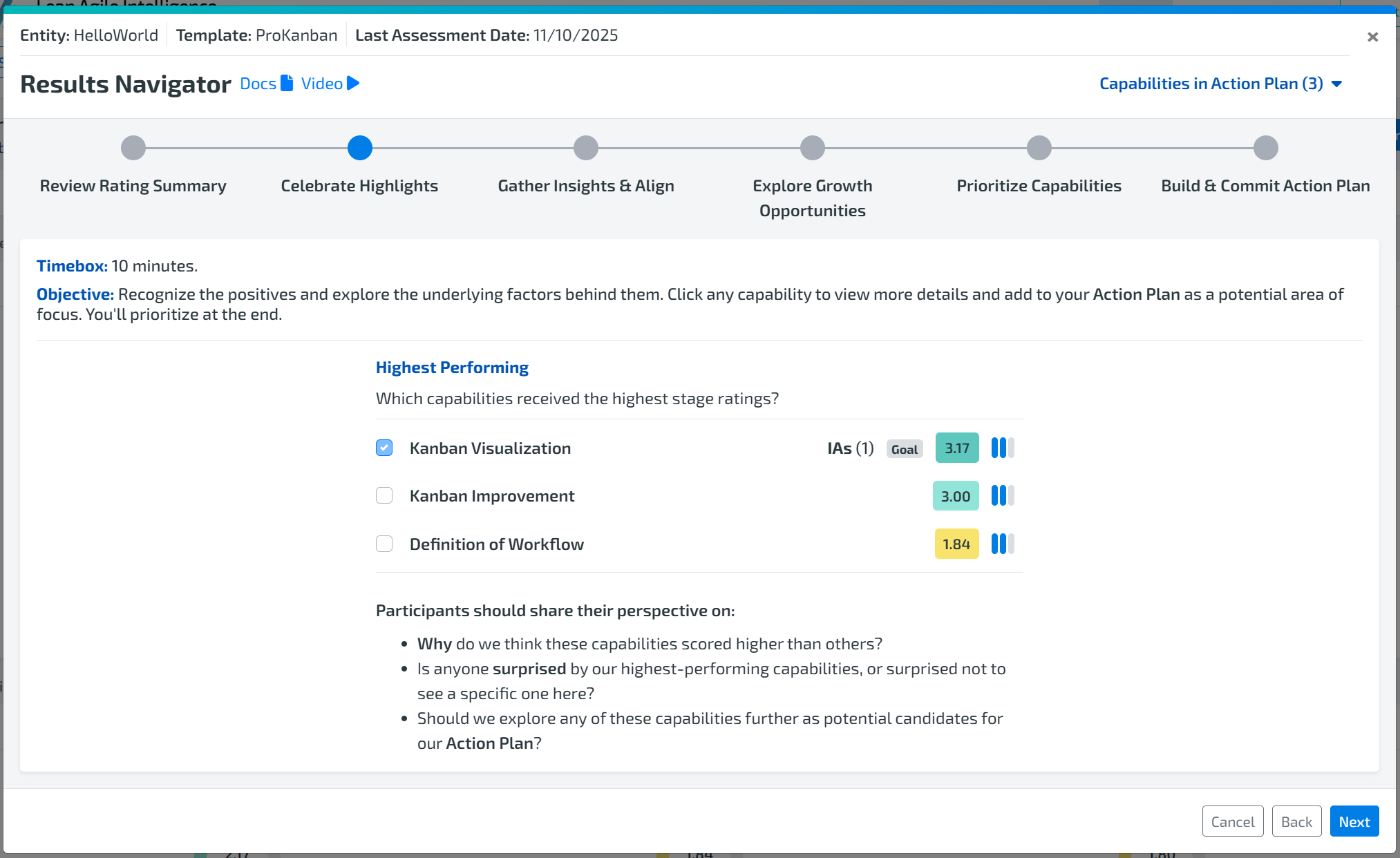
STEP 2: CELEBRATE HIGHLIGHTS
Objective: Recognize strong performance and uncover success factors
Timebox: 10 minutes
Available widgets:
Highest Performing: Which capabilities received the highest stage ratings?
Highest Improving: Which capabilities improved the most since the last assessment?
Only shown if previous results exist
Actions you can take:
Check a capability → add to Action Plan
Click capability name → view details in Capability Drilldown
Prompt team using onboard guiding questions
See Capability Drilldown documentation for deeper reference.
STEP 3: GATHER INSIGHTS & ALIGN
Objective: Explore diverse perspectives and develop shared understanding
Timebox: 15 minutes
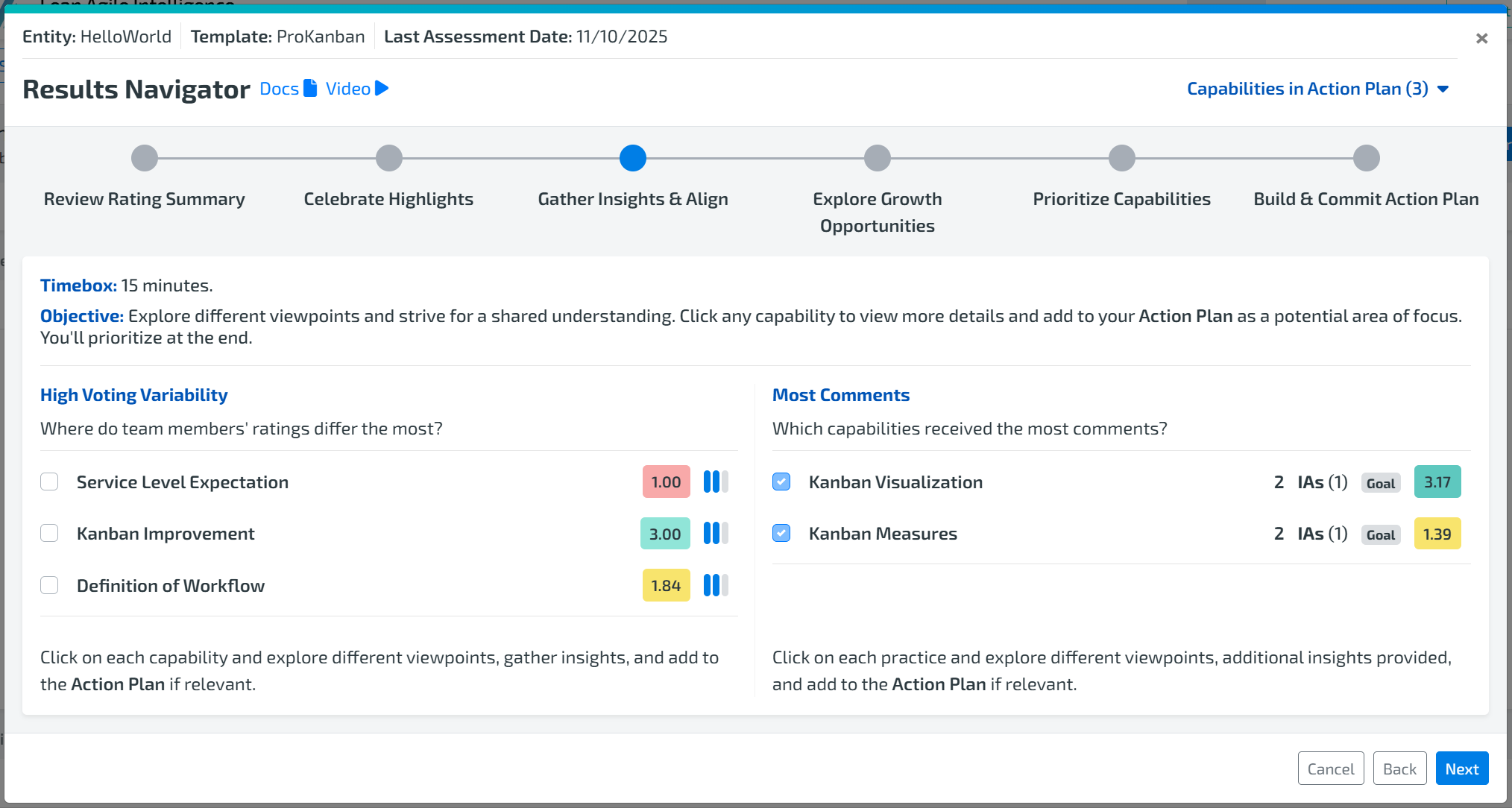
Available widgets:
High Voting Variability: Capabilities where the voting variability has a standard deviation ≥ 1
Most Comments: Capabilities with 2 or more participant comments
Use this step to understand disagreement, interpretation differences, or context.
STEP 4: EXPLORE GROWTH OPPORTUNITIES
Objective: Identify the most meaningful areas for improvement
Timebox: 20 minutes
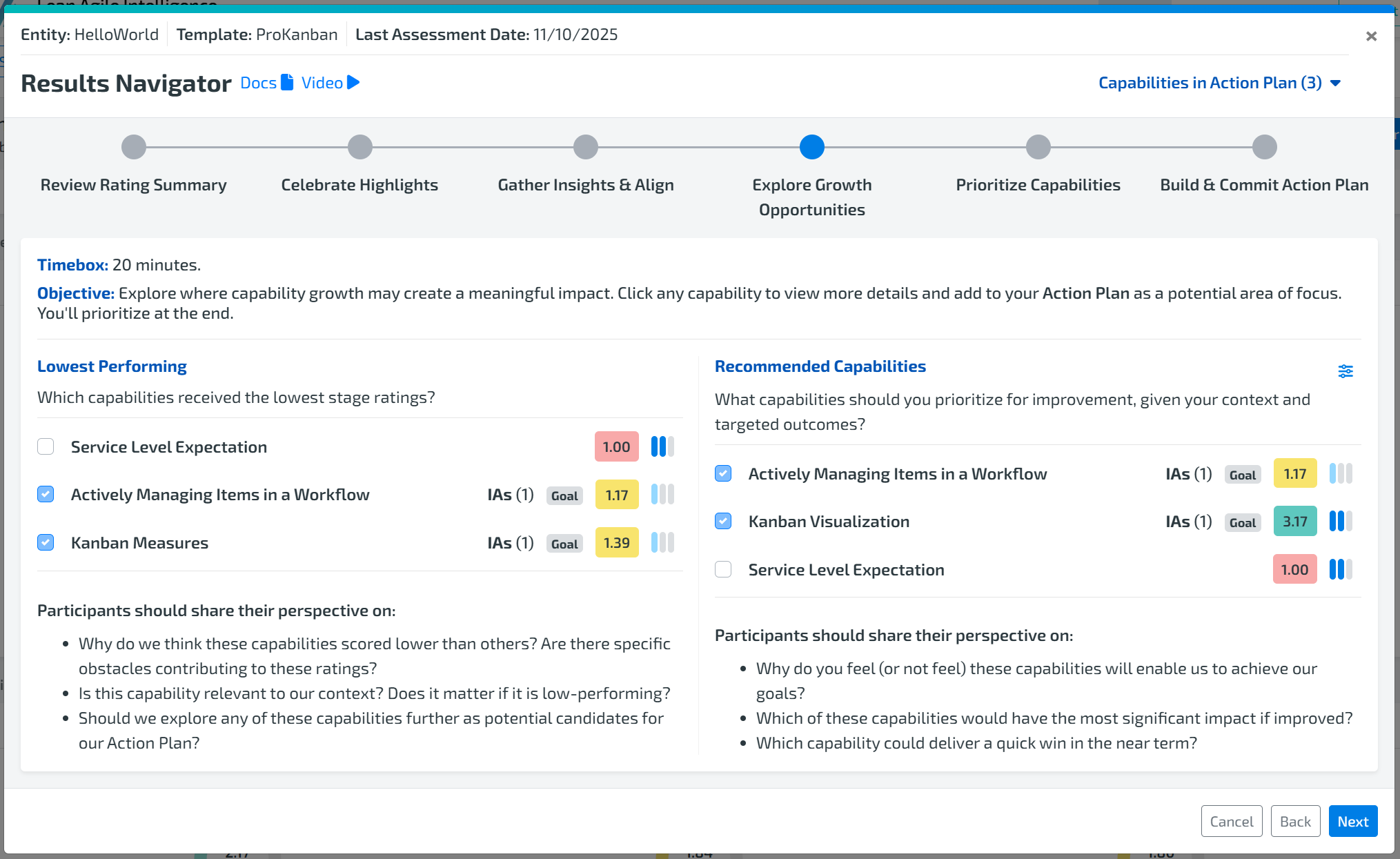
Widgets available:
Lowest Performing: Capabilities with the lowest stage ratings
Recommended Capabilities: Suggested based on Coaching Assistant outcome configuration
If no outcome targeting exists, click Run Coaching Assistant to generate recommendations based on prioritized outcomes and capability ratings.
You may edit outcome weighting anytime using the Edit Icon.
STEP 5: PRIORITIZE CAPABILITIES
Objective: Select up to three capabilities to focus on
Timebox: 10 minutes
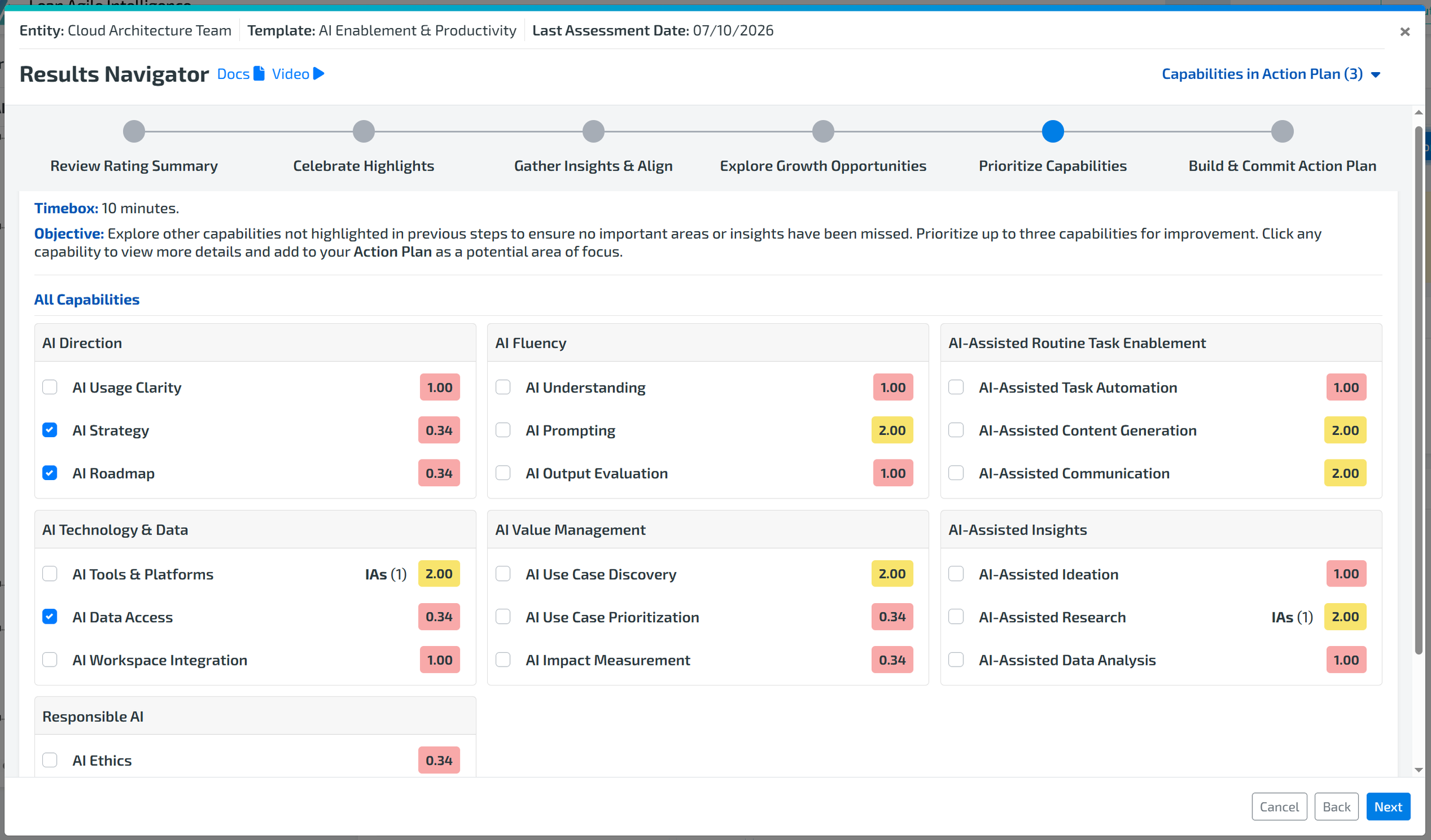
Here you see all rated capabilities and manage inclusion in the plan.
Check/uncheck to add/remove from Action Plan
Recommended max: three or fewer capabilities
If a capability is already marked as Goal/Impediment, it is locked into the plan
→ To remove, open the capability drilldown and unmark it there
STEP 6: BUILD & COMMIT ACTION PLAN
Objective: Create Improvement Actions (IAs) and finalize plan
Timebox: 25 minutes
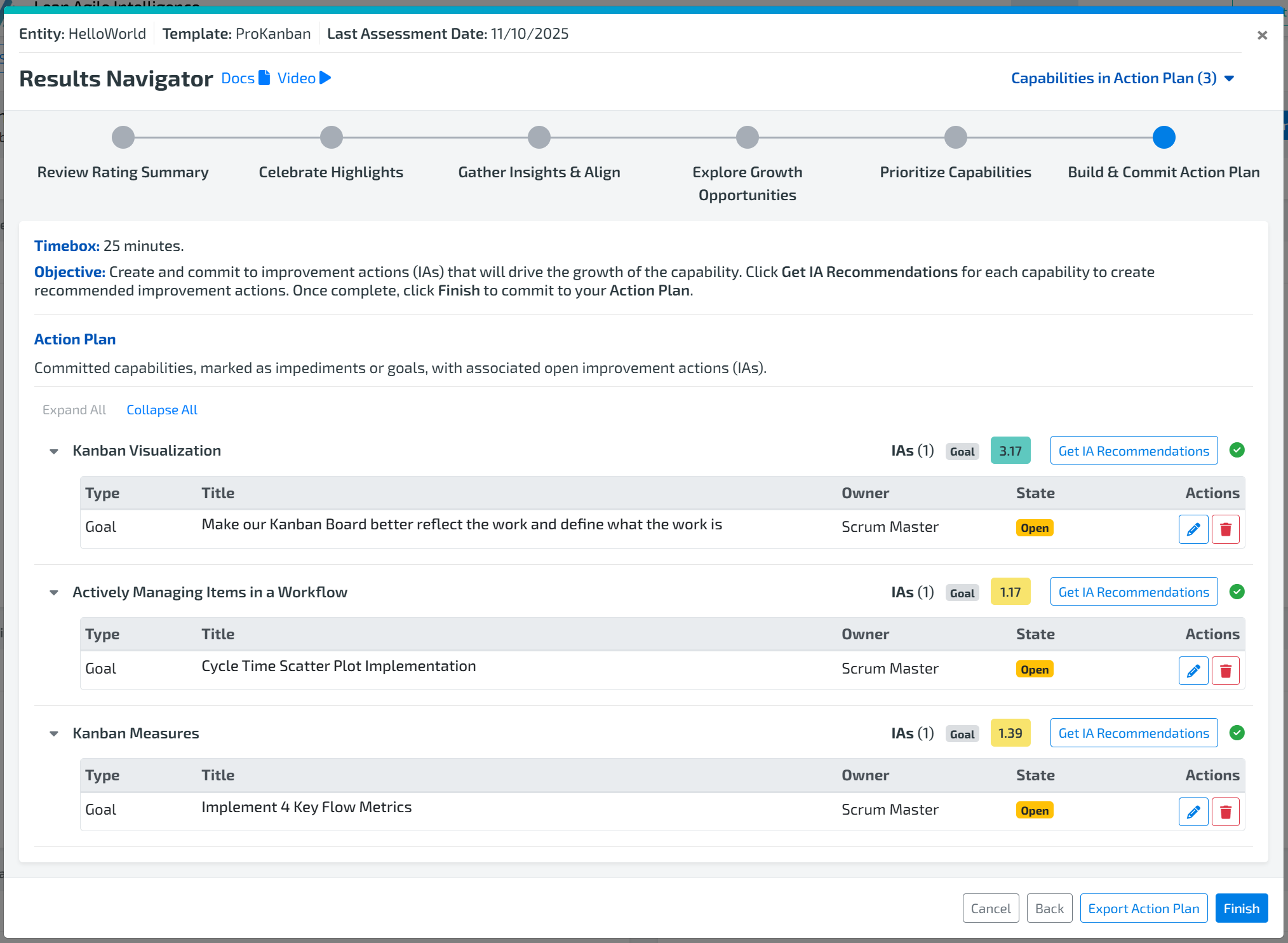
You will see all capabilities added to your Action Plan. A Green Checkmark indicates a capability is fully validated and added successfully. If missing validation, you may generate IAs by clicking
If AI is not enabled, use Create Improvement Actions to create manual IAs.
If AI is enabled
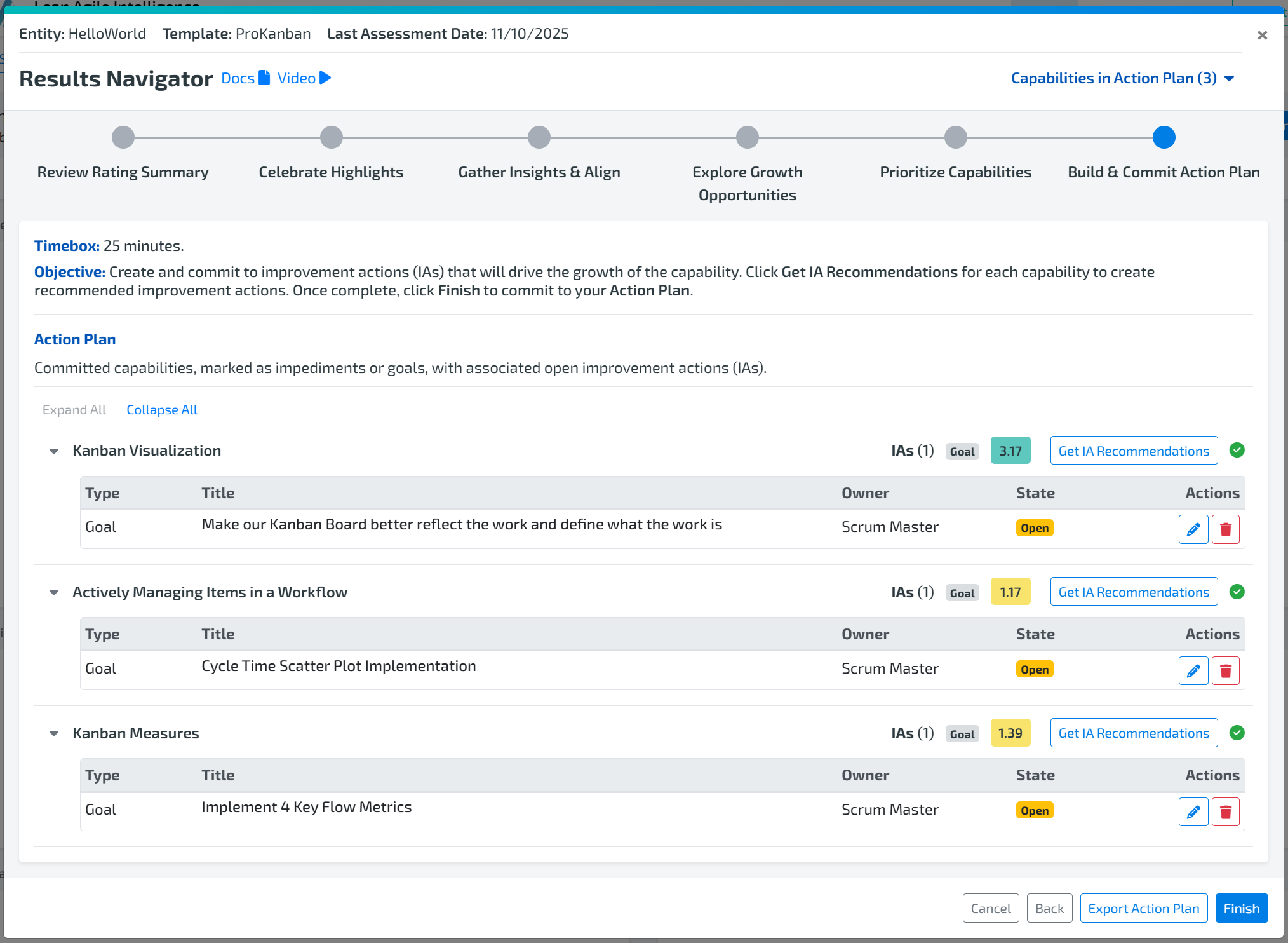
Click Get IA Recommendations
Navigate to Capability Drilldown → Recommendations tab
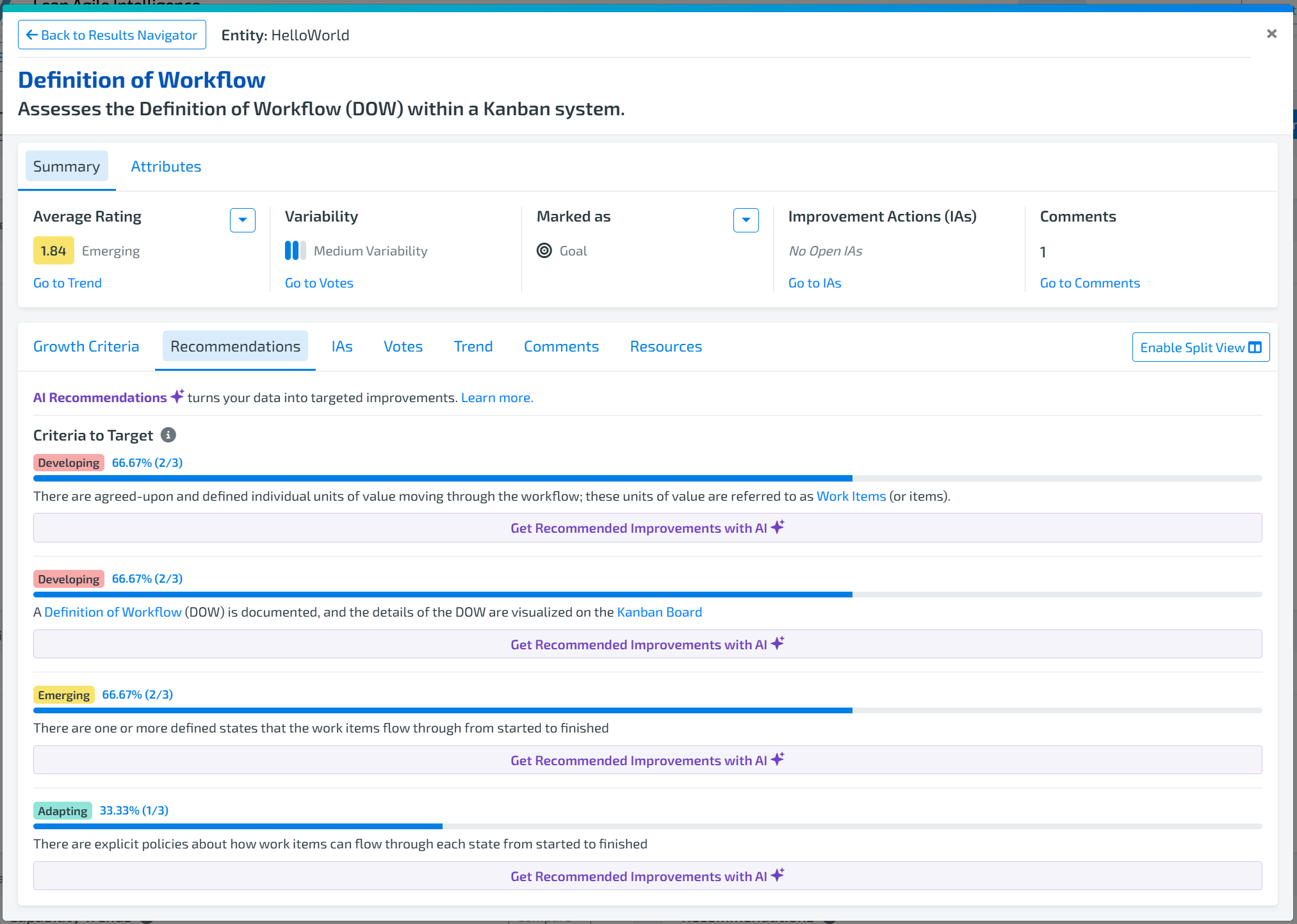
Select criteria → click Get Recommendation
Review generated suggestions
Click Convert to IA
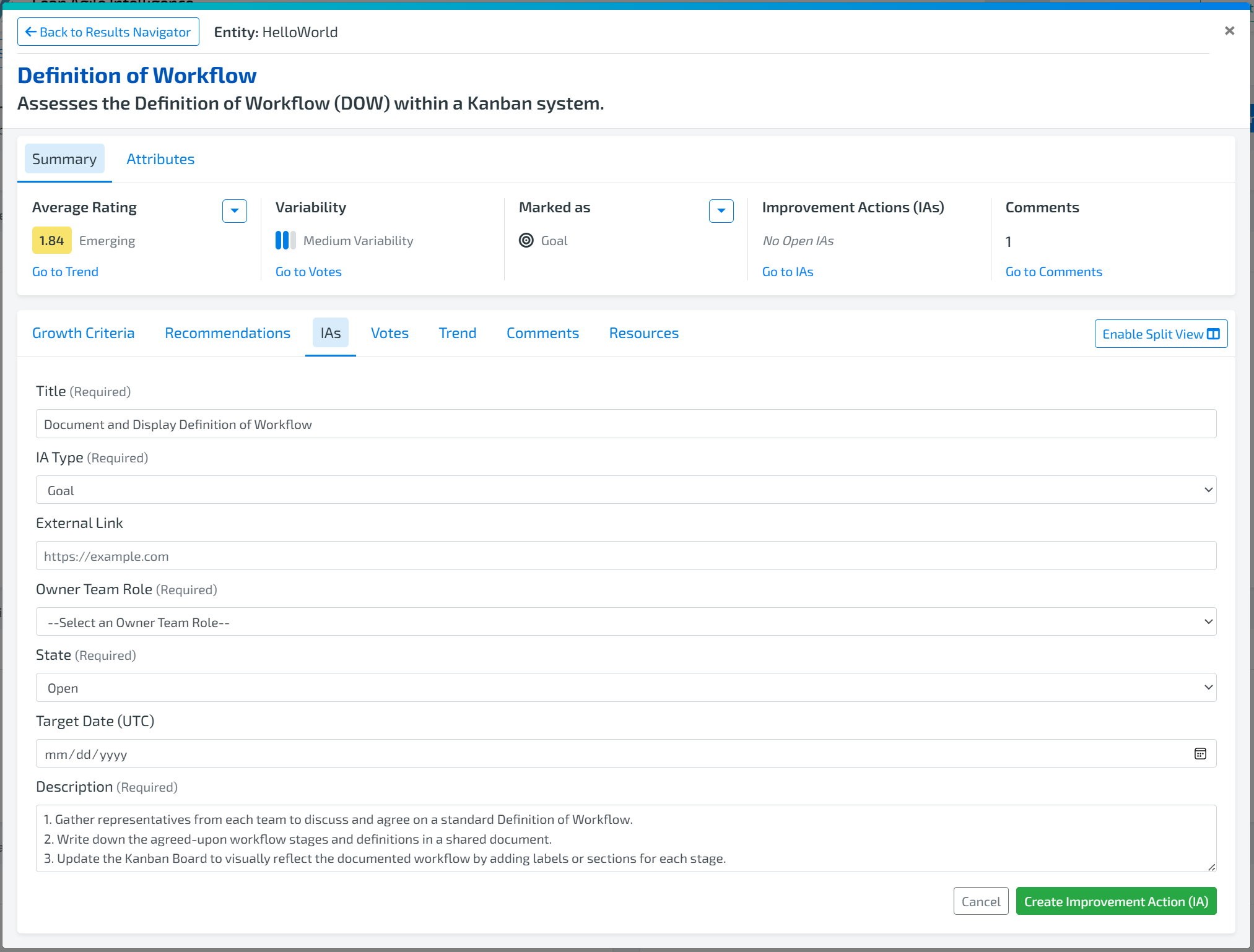
Complete fields such as:
External Link
Owner Team Role
Target Date
Title or Description edits
See AI Recommendations documentation for more detail.
Finalizing
After clicking Finish, there will be another validation check.
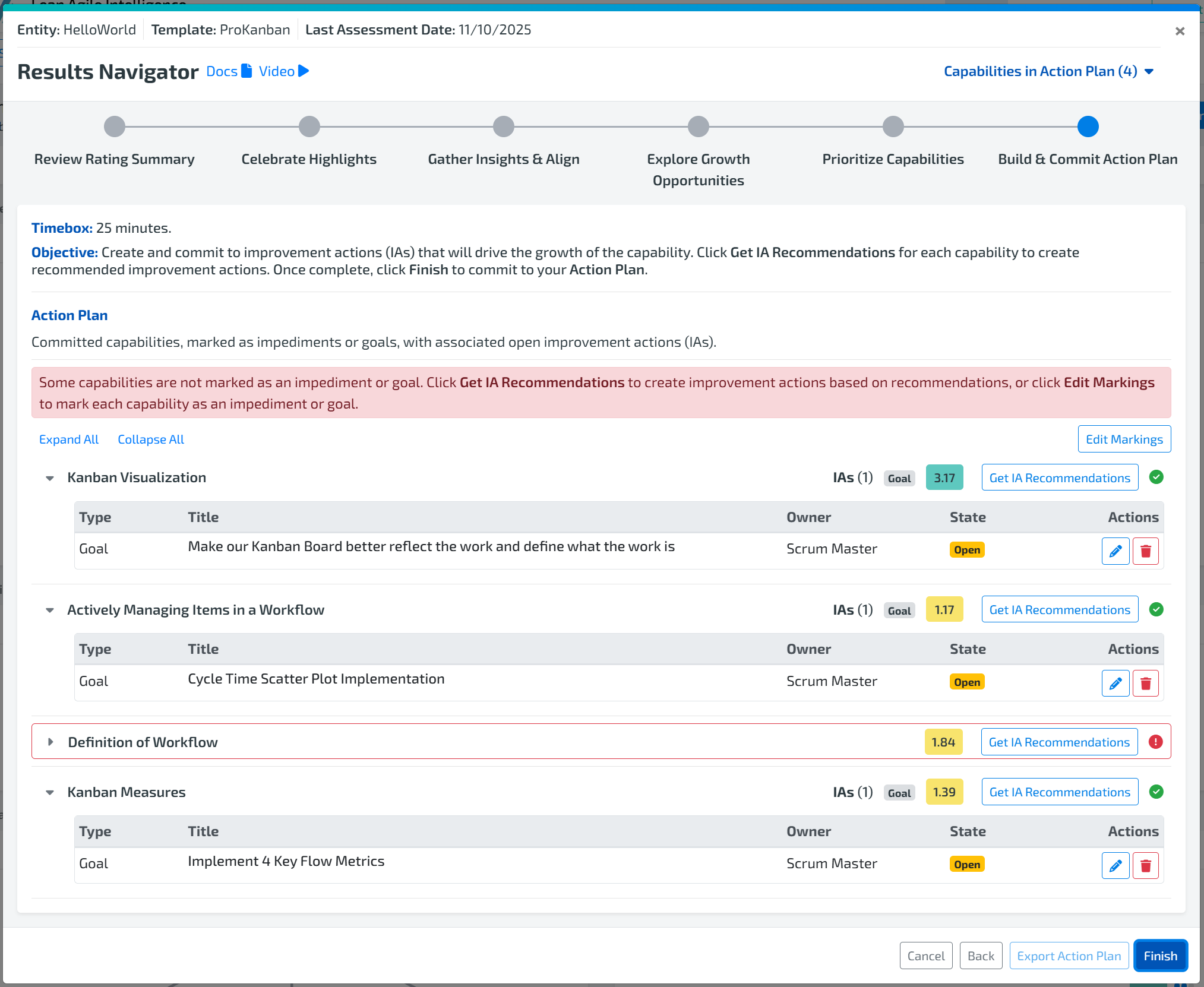
If validation fails, you will see a warning message along with red indicators showing items requiring update.
If missing validation:
You may generate IAs through Get IA Recommendations or Create Improvement Action buttons.
OR mark capability manually as Goal/Impediment using Edit Markings
You may still finish, but any unvalidated capability will be removed from the final plan.
From here, you may return to the Results Navigator to review your plan at any time until the next assessment is taken. Or you may click Export Action Plan to export a PDF copy.