

Dimension and Outcome Display Order gives organizations more control over how results are displayed throughout the platform.
This allows teams to organize reporting in a way that better aligns with business priorities, transformation goals, and executive storytelling.
Instead of relying only on default system ordering, organizations can now configure the exact order Dimensions and Outcomes appear within the Results Dashboard.
Where to Configure Display Order
order Dimensions
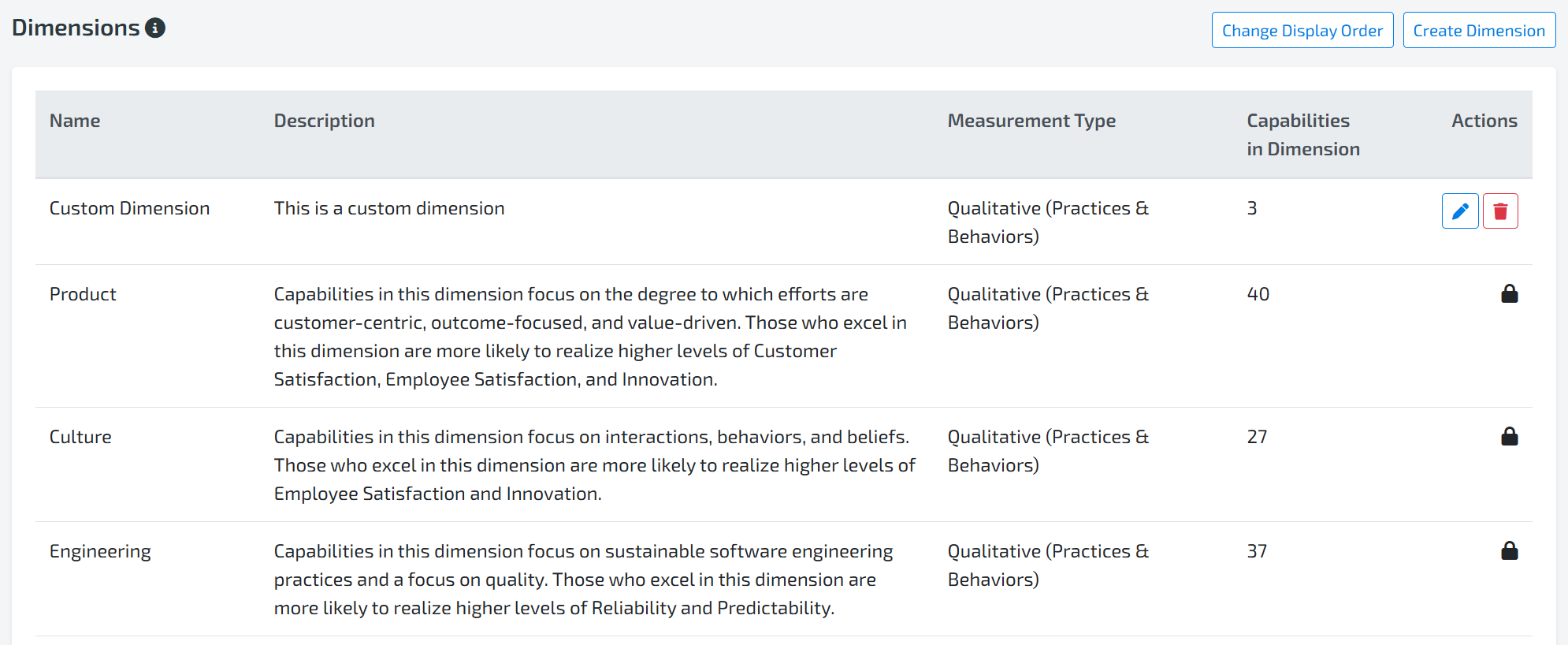
Navigate to Organization Setup → Dimensions
Click “Change Display Order” button
The arrows will appear next to all the dimensions allowing you to move them up or down
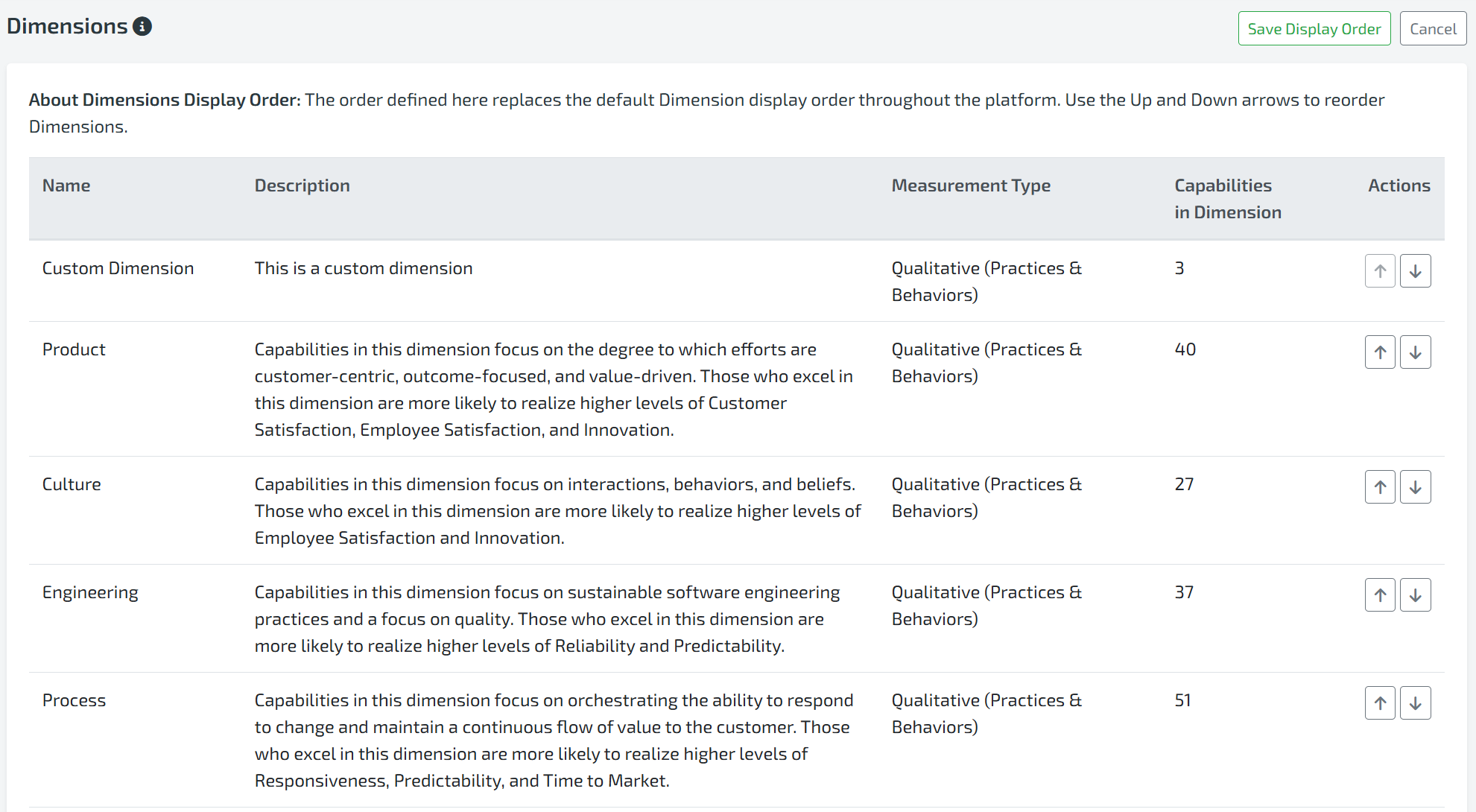
Click “Save Display Order” to save the results or “Cancel” to undo the order.
Order Outcomes
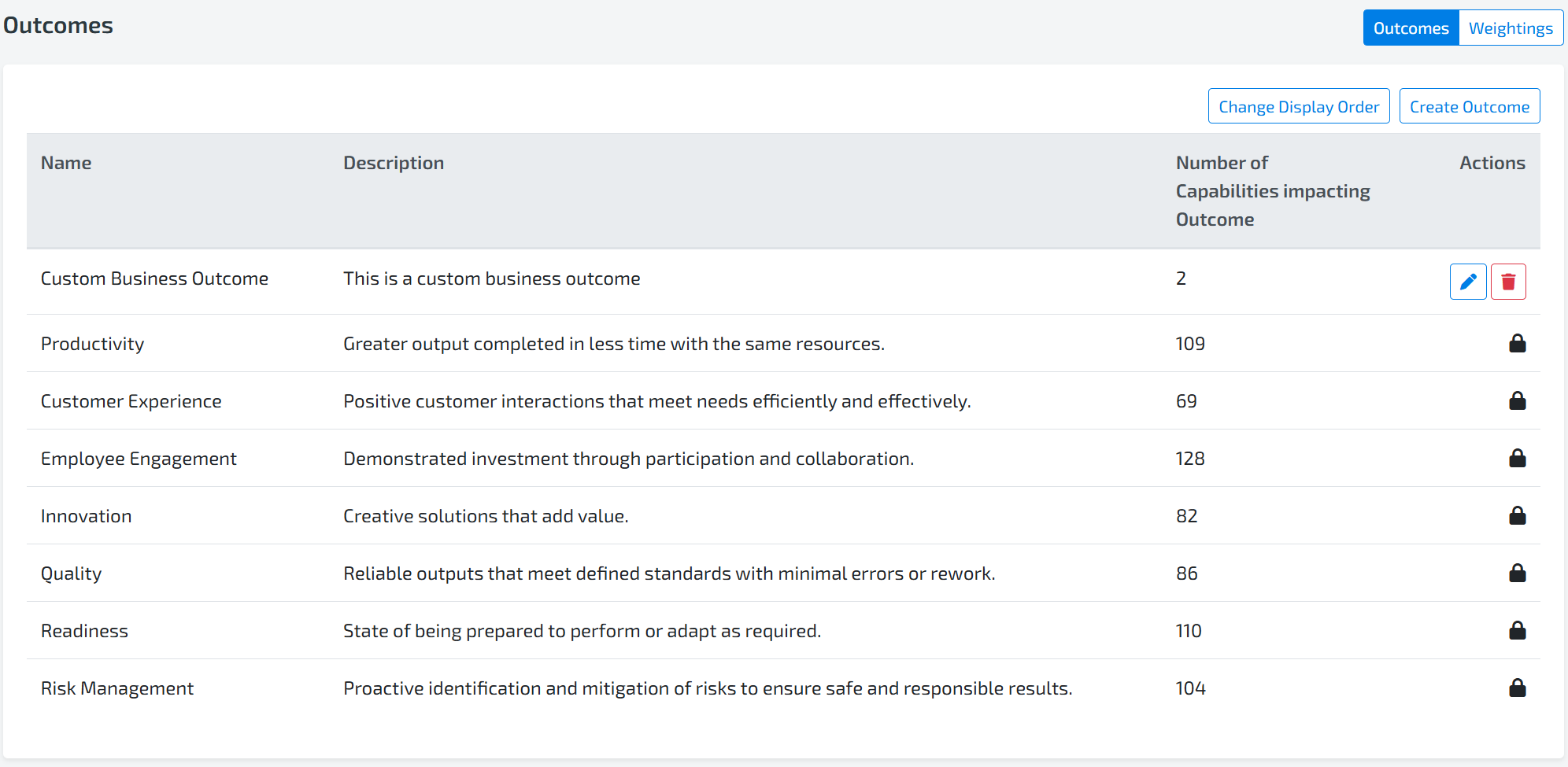
Navigate to Organization Setup → Outcomes
Click “Sort Display Order” button
The arrows will appear next to all the outcomes allowing you to move them up or down
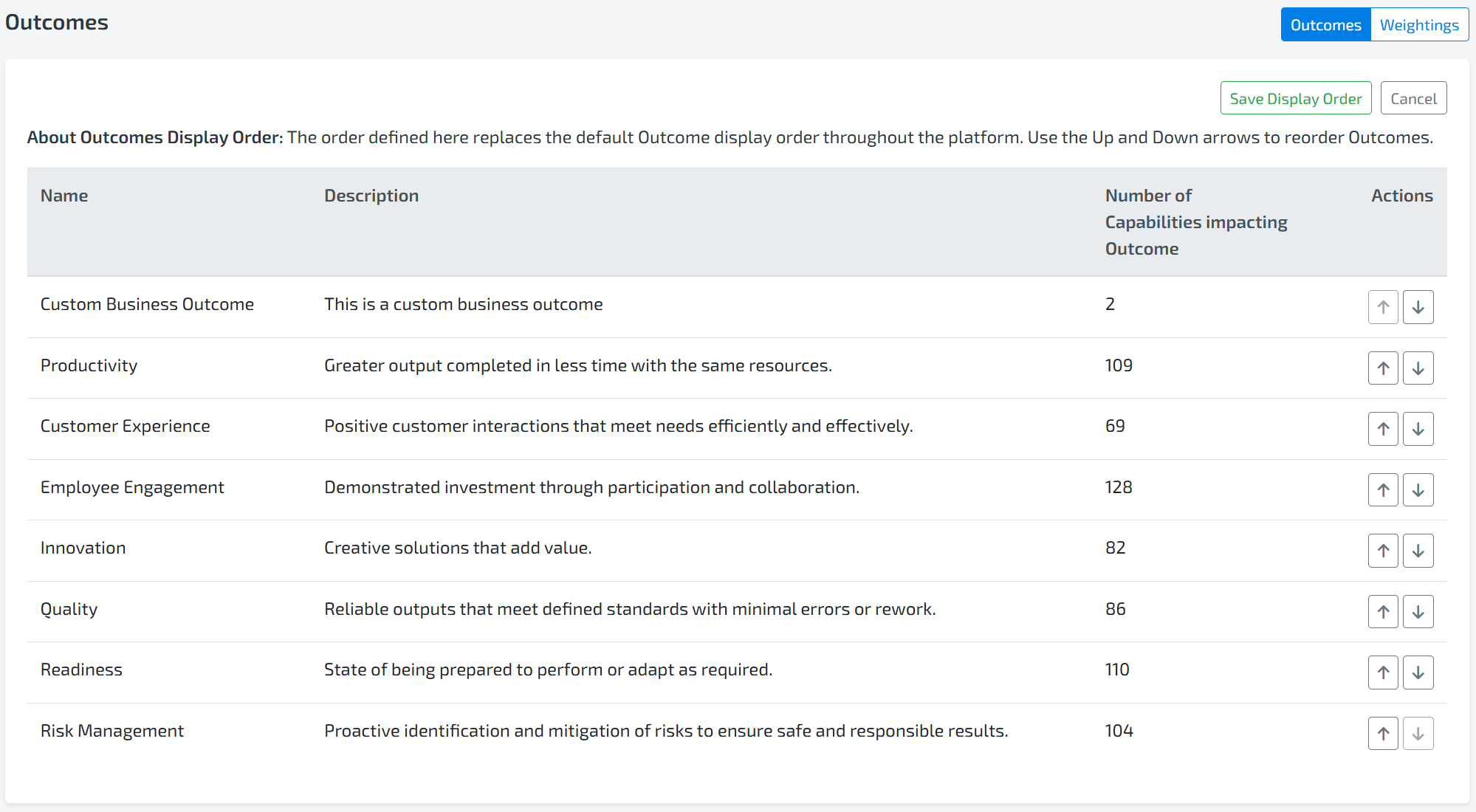
Click “Save Display Order” to save the results or “Cancel” to undo the order.
How Display Order Works
How Dimension Display Order Works
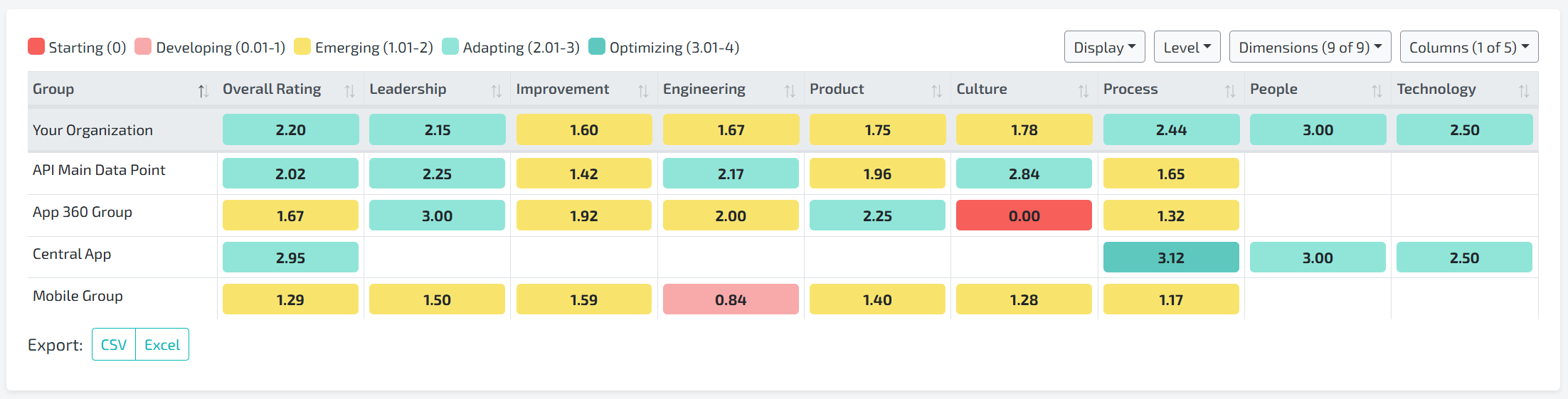
Dimensions will follow the configured display order if one has been defined within Organization Setup.
If no custom display order is configured the platform will use the default display order shown within the Dimensions screen
How Outcome display Order Works
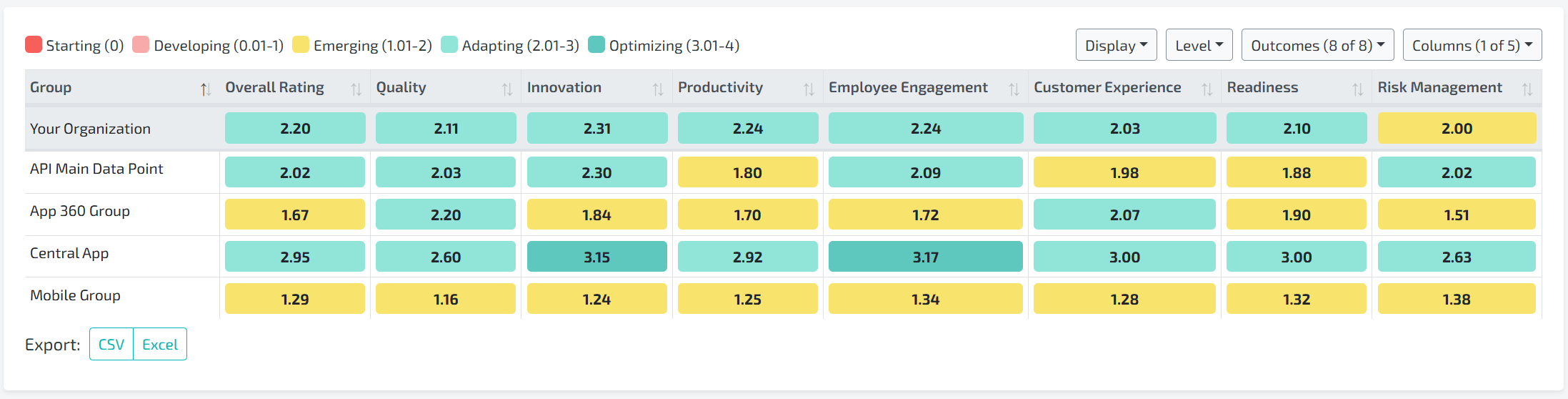
Outcomes will follow the configured display order defined within the Outcomes screen.
If no custom display order exists, the platform will use the default order displayed within the Outcomes screen