

1. WHAT IS SEPARATE VOTING FOR TOGETHER MODE?
Separate Voting allows selected participants to complete a Together Mode assessment independently while still having their votes included in the final Results calculations.
Every organization works differently. Some teams have members who cannot attend the scheduled Together Mode session, while others prefer facilitators or coaches to vote privately so they do not unintentionally influence the team's responses.
Separate Voting provides the flexibility to accommodate these situations while ensuring all eligible participant votes are included in the assessment results.
Typical use cases include:
Participants who are unavailable due to vacation, illness, scheduling conflicts, or other circumstances.
Facilitators or coaches who want to complete the assessment independently before or after the Together Mode session.
Teams that need additional scheduling flexibility without creating multiple assessments.
2. HOW TO USE SEPARATE VOTING
How to Enable Separate Voting
After launching a Together Mode assessment, the Facilitator that launched the assessment must:
Navigate to Manage Assessments.
Locate the assessment.
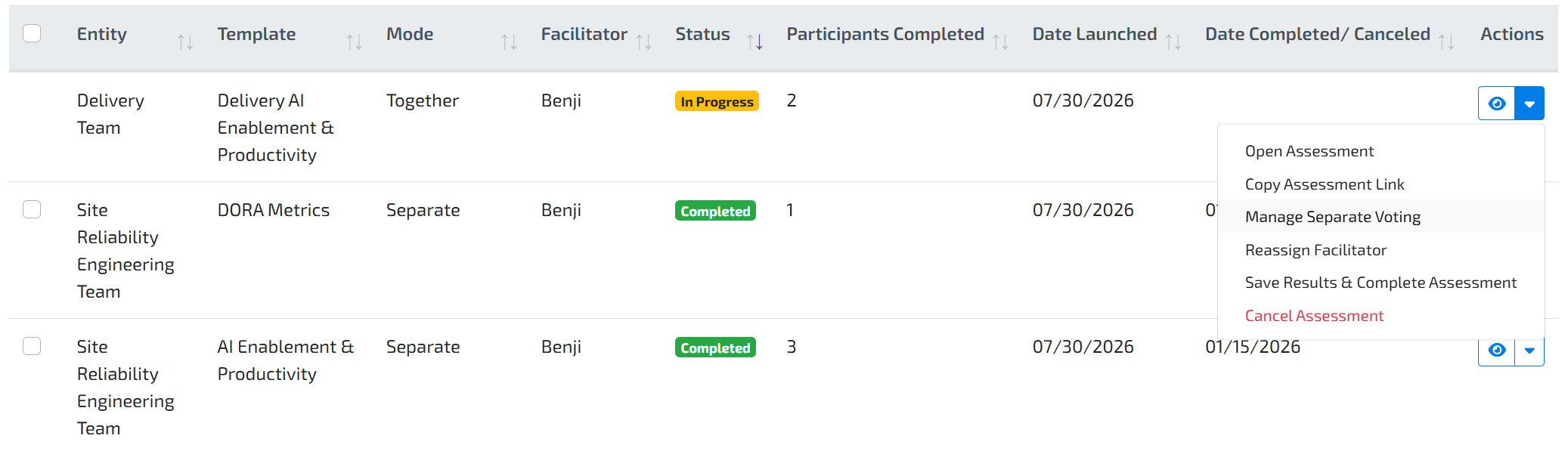
Drilldown into the Actions menu.
Select Enable Separate Voting.

5. Confirm that you want to enable Separate Voting.
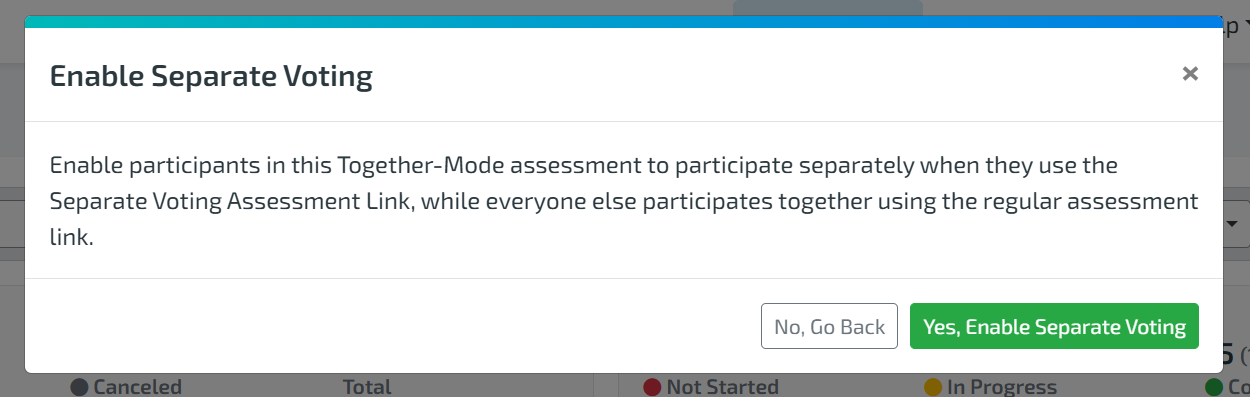
6. Copy the generated Separate Voting link.
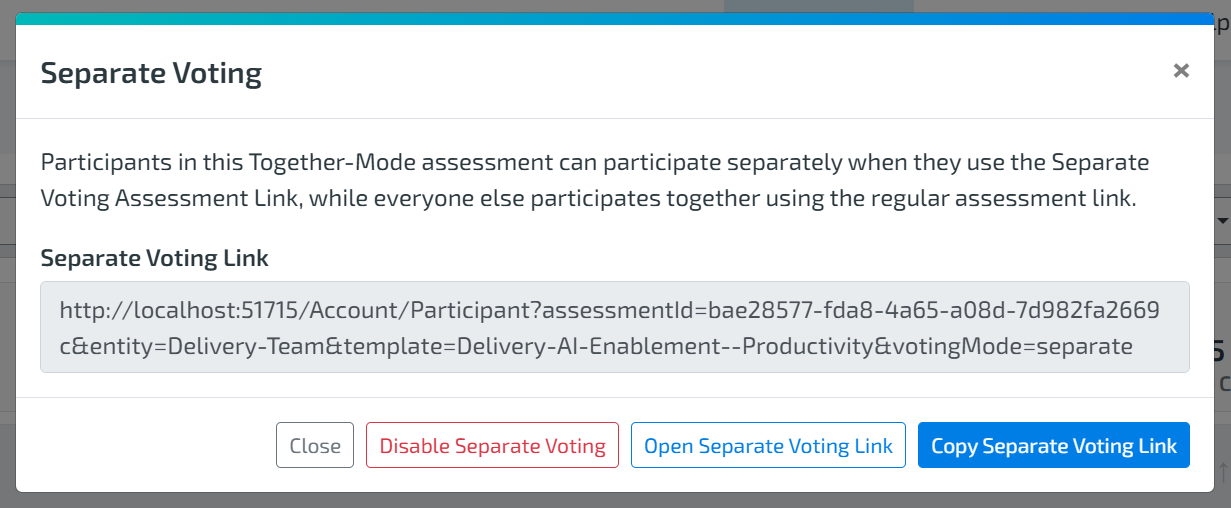
7. Send the link to the participant(s) who need to complete the assessment separately.
Once enabled, Separate Voting remains available until the assessment is completed, canceled, or if disabled.
Important note: Only the Facilitator that launched the assessment can Enable and Disable Separate Voting.
Disable Separate Voting
If you no longer want participants to submit responses separately before the assessment is completed, you can disable Separate Voting.
To disable Separate Voting:
Navigate to Manage Assessments.
Locate the assessment.
Drilldown into the Actions menu.
Click Manage Separate Voting.
5. Then select Disable Separate Voting.
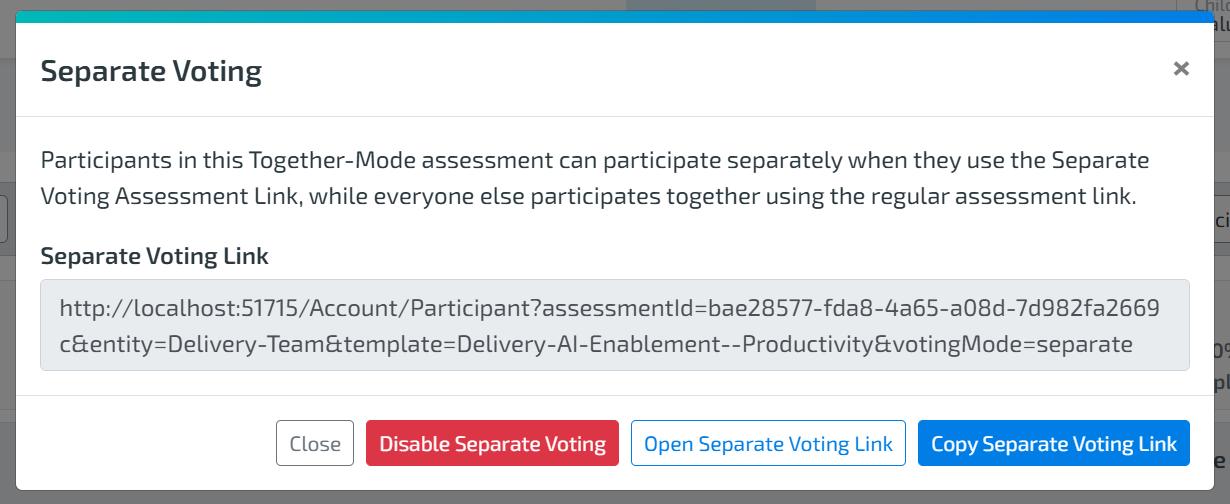
Once Separate Voting has been disabled the previously shared Separate Voting link will no longer be valid.
Please Note: After disabling Separate Voting, the votes cast via the Separate Vote link will now be avaliable in Together mode.
How Do I Track Participant Progress?
To monitor participant completion:
Navigate to Manage Assessments.
Locate the assessment.
Select the Assessment Details (Eye) icon.
You can see the Participant and their assessment status
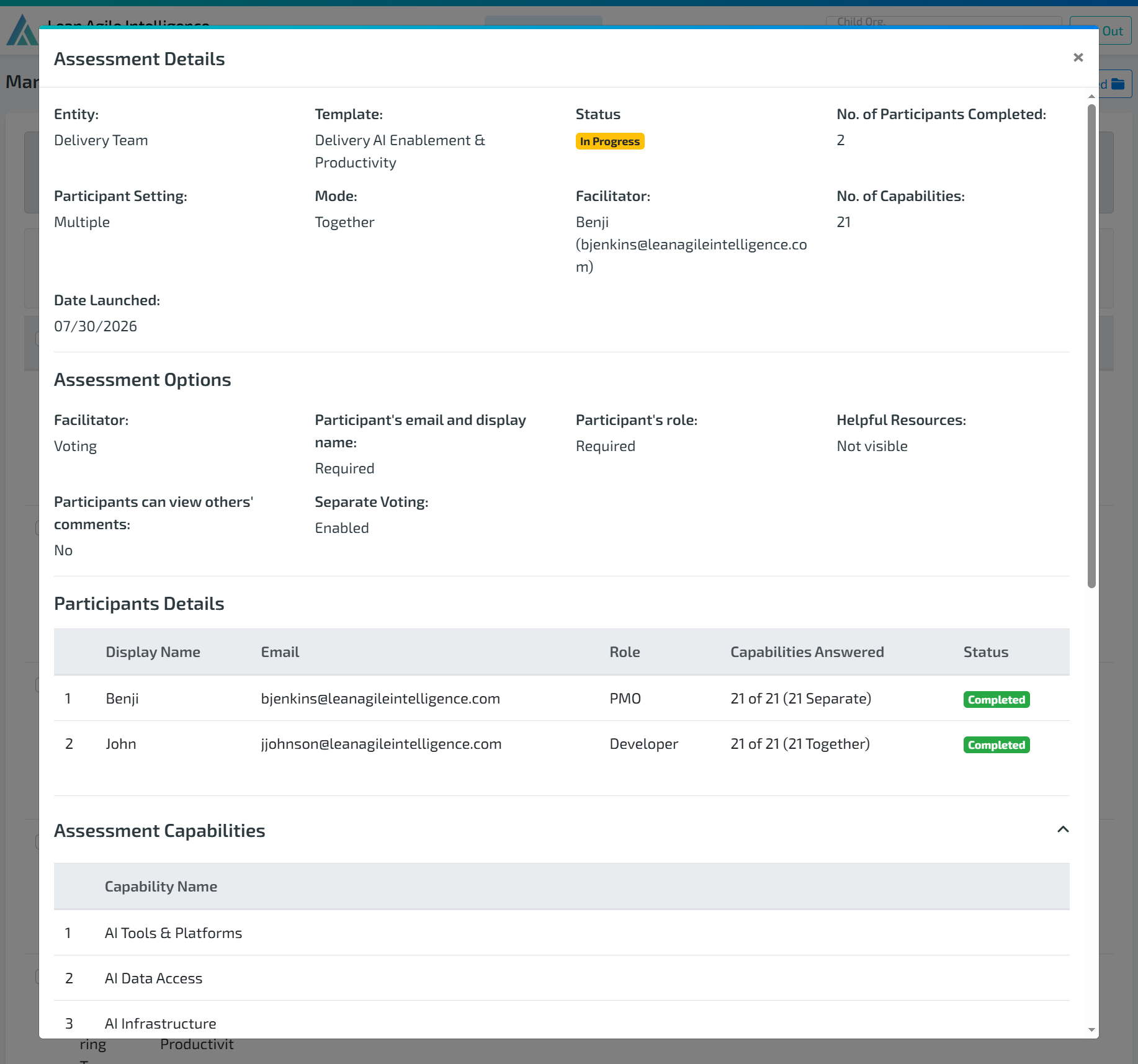
This allows facilitators to verify that all expected participants have completed the assessment before closing it.
How to Close an Assessment with Separate Voting
Once all participants have completed the assessment, both in Together Mode and through Separate Voting, the assessment can be completed.
To close the assessment:
Navigate to Manage Assessments.
Locate the assessment.
Drilldown into the Actions menu.
Select Save Results and Complete Assessment.
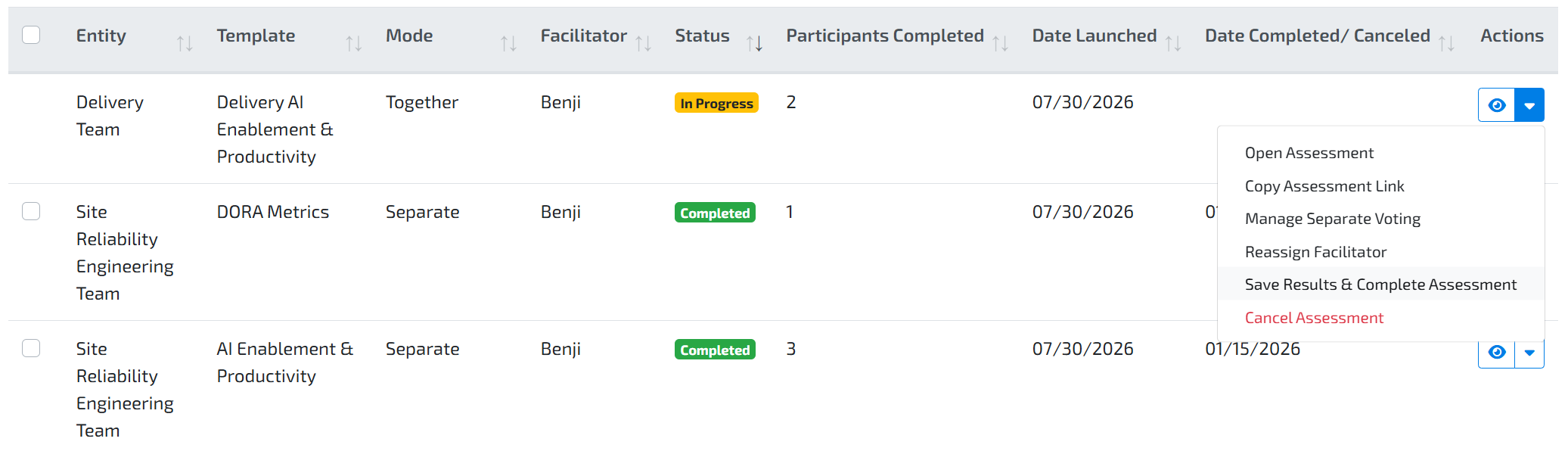
Completing the assessment closes both the Together Mode session and Separate Voting. No additional participant responses can be submitted after the assessment has been completed.
3. EXPERIENCE IN TOGETHER MODE AFTER VOTING SEPARATELY
If the facilitator or a participant completes the assessment using the Separate Voting link before the live Together Mode session:
Their votes are securely stored.
Their votes will not appear on the Together Mode voting screen.
Other participants will not see the votes casted using the Separate Voting link.
If a facilitator or participant who has already completed the assessment using Separate Voting joins the Together Mode session, they will see a message indicating that they have already submitted their vote separately.
After all participants have finished voting on a capability, the facilitator can simply select Next Capability to continue the session.
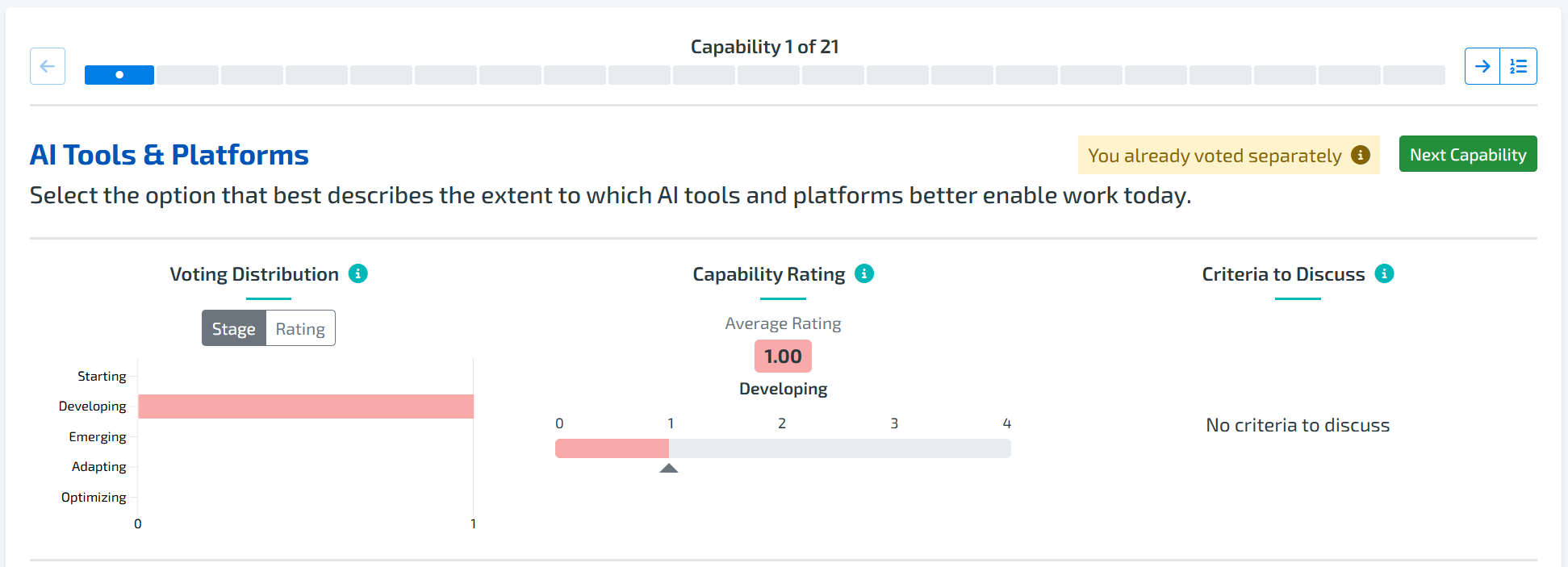
This allows facilitators or participants to:
Share their screen throughout the session.
Participate independently.
Prevent their votes from influencing participant responses.